Doorgaan naar de website
OCLC Support

Search in Collection Manager

Use the search field to find collections that you have already created of any collection-type. Alternatively, find collections and providers that are in the global WorldCat knowledge base.

About

Follow these instructions to search Collection Manager for:

  • Knowledge base collections (collections available in the global WorldCat knowledge base and/or knowledge base collections you have already selected or created)
  • Query collections you have already created
  • Cataloging partner collections you have already created
  • Providers

See Search for data sync collections for instructions to search for data sync collections that you have created.

Search for a collection

  1. Navigate to the WorldShare interface > Metadata tab > Collection Manager.
  2. Select Collection as the Data Type from the drop-down list.
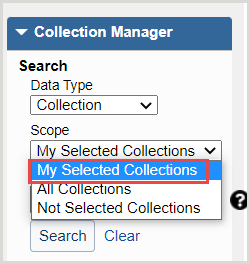
  3. Select a scope to limit your search. Options include:
    • My Selected Collections: Search across your library-specific collections that you have created or selected.
    • All Collections: Search across items that are available in the global collections available in the WorldCat knowledge base and collections you have created.
    • Not Selected Collections: Search for collections to add to your knowledge base that are not currently selected. 

      Collection Manager My Selected Collections

  4. In the Search Term(s) field, enter your terms or leave the field empty.
    • If no search criteria is entered in this search field, all items are returned in the search results.
    • Enter an asterisk (*) after a search term to view items that begin with that term.
  5. Click Search.

    Filter

  6. After search results are returned, you can filter your results by using the Show filters collection_manager_show_filters.pngoption at the top of the search results:

     Note: Filter options will appear based on institution settings and your library's subscription level.

    • Collection Type - From the second drop-down list, select a collection type.
      • Cataloging partner collections
      • Database-only collections
      • Knowledge base collections
      • Query collections
    • Collections I Created
    • Contains Open Access content
    • Demand Driven Acquisitions collections
    • Discontinued 
    • Document delivery collections
    • Google Scholar
      • In the Value space, select Enabled or Disabled.
    • Maintain WorldCat holdings
      • In the Value space, select Enabled or Disabled.
    • MARC record delivery
      • In the Value space, select Enabled or Disabled.
    • OCLC cataloged collections
    • Sharing
      • In the Value space, select an option.
        • Collections shared to my library
        • Collections shared by my library
    • Use proxy
      • In the Value space, select Enabled or Disabled.
  7. (Optional) Add additional filters by using the Add filter button.
  8. (Optional) Remove filters by using the minus sign next to the filter row. Select the Remove all option to remove the filters.
  9. The search results will update as the filter is applied.

Search for cataloging partner collections

Search for cataloging partner collections that you have already created:

  1. Navigate to the search box in Collection Manager.
  2. Select Collection as the Data Type and My Selected Collections as the Scope.
  3. Click Search. The search will return all of the collections your library has selected or created.
  4. Select Collection types from the filter list and select Cataloging partner collections as the Value.

Search for OCLC cataloged collections

To find additional information about this collection type, see OCLC cataloged collections.

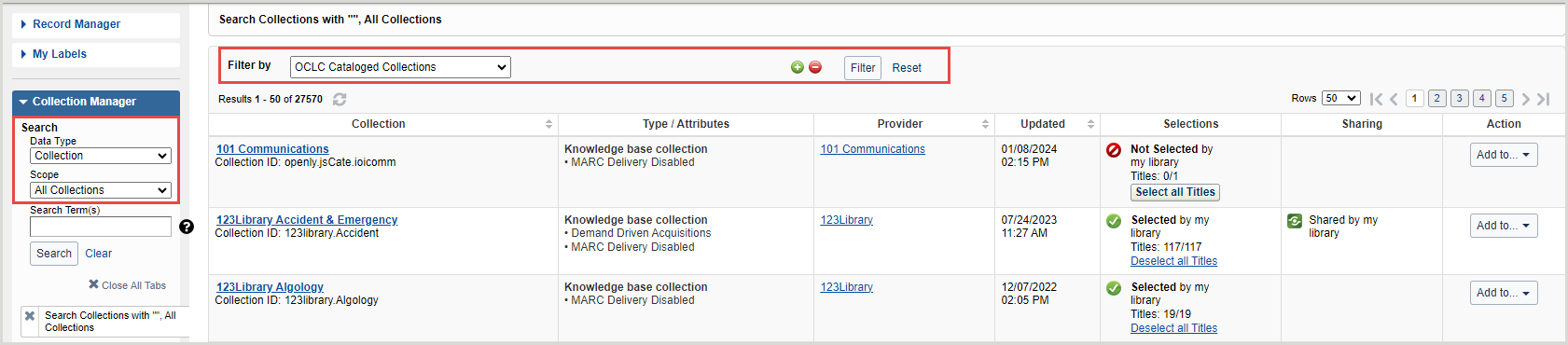
Filter for OCLC cataloged collections

  1. In the WorldShare interface, navigate to Metadata > Collection Manager.
  2. Select Collection as the Data Type and All Collections as the Scope.
  3. Leave the search box empty and click Search.
  4. Select OCLC cataloged collections as the filter.

cm-oclc-cataloged.png

Collection search results

Items in your search results will be marked with a collection type and other details.

Sort results by Collection, Provider, or Updated.

Collection search results in Collection Manager - Table
Collection type Column Description
Cataloging partner collections, Knowledge base collections, and Query collections Collection Click a collection name to view or edit the collection.

The Collection ID can be used in lieu of a collection name when discontinuing a feed.

Type / Attributes

The type of collection.

Cataloging partner collection - Available attributes
Attribute Description
MARC Delivery Enabled The collection has the setting to Enable MARC Record Delivery enabled.
MARC Delivery Disabled The collection has the setting to Enable MARC Record Delivery disabled.
Knowledge base collection - Available attributes
Attribute Description
Demand Driven Acquisitions The collection is part of a Demand Driven Acquisitions program where OCLC is working with a feed from the provider to automatically update the collection metadata.
Discontinued The collection is no longer being actively maintained or updated by knowledge base data updates.
Document Delivery The collection is available for user with your library’s document delivery program.
Google Scholar Disabled The titles in the collection are not submitted to Google to create links in Google Scholar.  See Google Scholar for more information.
Google Scholar Enabled The titles in the collection are submitted to Google to create links in Google Scholar.  See Google Scholar for more information.
License(s) Available The collection has licenses available. Click License(s) Available to see the status of the license (current, expired, etc.). For more information, see Edit, renew, or terminate a license.
Locally Created The collection is a custom collection created by your institution.
OCLC Cataloged The collection is cataloged by OCLC staff and made available through Collection Manager by the provider.
Open Access The collection is an open-access collection.
Query collection - Available attributes
Attribute Description
One-time delivery You will receive a file of records for the WorldCat query collection once.
Ongoing delivery You will receive records on an ongoing basis.
Provider The vendor or content provider who supplies the collection. Click a provider name to view all collections supplied by the provider.
Updated The date and time the collection was last updated.
Selections

Indicates whether the collection has been added to your holdings and, if it has, how many titles from the collection are in your holdings.\

To add a collection to your holdings, click Select

To remove a collection from your holdings, click Deselect or Delete.

Sharing Indicates whether you have shared the collection with another institution.

To view the libraries you shared the collection with, click the collection's name. Once you are in the collection, click the Sharing accordion.

Action

Click Action to:

  • Add the collection to a license (click Add to license)
  • Create a new order (click Add to order)
  • Add the collection to a purchase request without leaving Collection Manager (click Create purchase request)

Search for a title

 Note: Keyword searches with partial words and/or special characters, including wildcards, are not supported in Collection Manager Title Search.  For example, healt* is not a supported search term, but health is supported.

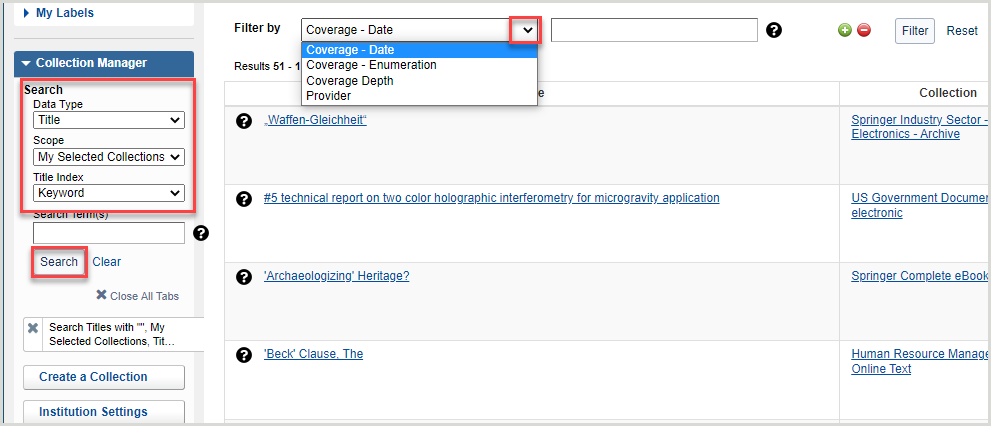
  1. Navigate to the WorldShare interface > Metadata tab > Collection Manager.
  2. Select Title as the Data Type from the drop-down list.
  3. Select a scope to limit your search. Options include:
    • My Selected Collections: Search across your library-specific collections that you have created or selected.
    • All Collections: Search across items that are available in the global collections available in the WorldCat knowledge base and collections you have created.
    • Not Selected Collections: Search for collections to add to your knowledge base that are not currently selected.
  4. Change the Title Index to one of the below options:
    • Keyword
    • Title
    • ISBN
    • ISSN
    • OCLC Number

      Filter

  5. In the Search Term(s) field, enter your terms or leave the field empty.

     Note: Searching by the OCLC Number Title Index without search terms will fail to return results.

    • If no search criteria is entered in this search field, all items are returned in the search results.
    • Enter an asterisk (*) after a search term to view items that begin with that term.
  6. Click Search.

    Filter

  7. After search results are returned, you can filter your results by using the Show filter button collection_manager_show_filters.pngat the top of the search results:
    • Coverage - Date: Format date as YYYY-MM-DD, YYYY-MM, or YYYY.
    • Coverage - Issue: Enter an issue number.
    • Coverage - Volume: Enter a volume number.
    • Coverage depth:  From the Value drop-down list, select a coverage depth.
    • Provider: From the Value drop-down lists, select or search for a specific provider.
  8. (Optional) Add additional filters by using the Add filter button.
  9. (Optional) Remove filters by using the minus sign next to the filter row. Select the Remove all option to remove the filters.
  10. The search results will update as the filter is applied.

Search for a title within a collection

You can also search for a title directly from within a collection.

  1. Search for a collection and click on the collection name in the results to open your desired collection.
  2. In the collection details, click on Titles to expand the accordion. 
  3. In the Search Title field, enter your terms.
  4. You can filter your results by expanding the Filter by drop-down beside the Search Title field. Options include:
    • Coverage - Date: Format date as YYYY-MM-DD, YYYY-MM, or YYYY.
    • Coverage - Enumeration: Enter a volume and issue number.
    • Coverage Depth: From the second drop-down list, select a coverage depth.
  5. (Optional) Add additional filters by using the green plus add icon (Add button). 
  6. Click Filter to filter the results based on your specifications.

Title search results

Items in your search results will be marked with a title and other details.

Title search results in Collection Manager - Table
Column Title
Title Click on a title to view or edit the title.
Title work list

Add or remove items for your work list. Refer to Title work list for more information.

To add every title from the search results view, select Add page to list

  • To remove titles from the search results view, select the Add page to list drop-down and click Remove page from list
Collection Click a collection name to view or edit the collection.

The Collection ID can be used in lieu of a collection name when discontinuing a feed.

Coverage Depth

Indicates one of the following:

  • Audio
  • Ebook
  • Image
  • Journal - Abstracts
  • Journal - Full Text
  • Journal - Indexed
  • Journal - Print
  • Journal - Selected Full Text
  • Other
  • Video
Coverage

Any coverage selections available for the title. Options include:

  • Date
  • Volume
  • Issue
Identifiers

Indicates the provided identifiers associated with the title. Options include:

  • OCLC Number
  • ISBN
  • Website

Click on the pencil button to edit the title.

Selections

Indicates whether the title has been added to your holdings.

Use the Select or Deselect options to add or remove titles from your selection.

Action

Click Action to:

  • Add the collection to a license (click Add to license)
  • Create a new order (click Add to order)
  • Add the collection to a purchase request without leaving Collection Manager (click Create purchase request)

Search for a provider

  1. Navigate to the WorldShare interface > Metadata tab > Collection Manager.
  2. Select Provider as the Data Type from the drop-down list.
  3. Select a scope to limit your search. Options include:
    • My Selected Collections: Search across your library-specific collections that you have created or selected.
    • All Collections: Search across items that are available in the global collections available in the WorldCat knowledge base and collections you have created.
    • Not Selected Collections: Search for collections to add to your knowledge base that are not currently selected. 
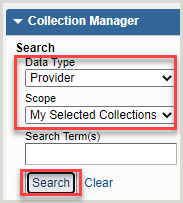
      collection-manager-provider-search.png

  4. In the Search Term(s) field, enter your terms or leave the field empty.
    • If no search criteria is entered in this search field, all items are returned in the search results.
    • Enter an asterisk (*) after a search term to view items that begin with that term.
  5. Click Search.

Provider search results

Items in your search results will be marked with a provider and other details.

Provider search results in Collection Manager - Table
Column Title
Provider The vendor or content provider who supplies the collection. Click a provider name to view all collections supplied by the provider.
Selections

Indicates how many collections the provider has, along with how many are selected. Click on a number to view all collections supplied by the provider or all selected collections.

Attributes
Shared Indicates that your library shared the collection.
Shared with me by Click on the name of the provider who shared the collection with your library to view their profile.
Locally created Indicates that the collection was created locally.
Selections

Indicates how many collections the provider has, along with how many are selected. Click on a number to view all collections supplied by the provider or all selected collections.

Action

Click Local Provider Actions to:

  • Delete Provider
  • Edit Provider

Tips for using the search field

Leave the search box empty to return all collections
If you plan to filter your search results, first perform a search by leaving the search box empty. Note that if:
  • My Selected Collections is selected, an empty search will return your library-specific collections.
  • All Selected Collections is selected, an empty search will return collections in the WorldCat knowledge base.
  • Not Selected Collections is selected, an empty search will return all collections not selected by your library.
Use a truncation operator
To search with a truncation operator, use an asterisk (*). For example:
  • nature* returns all items starting with "nature"
  • LHR* returns all items containing "LHR" in the Collection Name or Collection Type fields
Search by OCLC number, ISBN, or ISSN
To search by OCLC number, ISBN, or ISSN, choose Title from the drop-down list, choose the corresponding Title Index from the drop-down list, enter the number, and click Search.
Search by Provider if searching by Collection is unsuccessful
A knowledge base collection might be available but by a slightly different collection name than you expect. If searching by Collection does not return what you expect, try searching by Provider.

Search the Activity History

The Activity History in WorldShare Collection Manager applies to knowledge base collections, query collections, and cataloging partner collections. It does not include information about data sync collections.

 Note: Activities are tracked for 90 days.
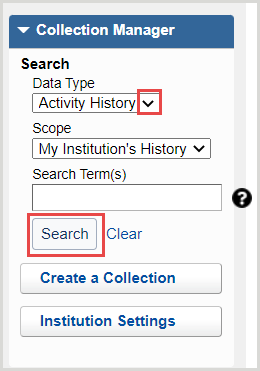
collection-manager-search-activity-history.png

  1. Navigate to the Metadata tab > Collection Manager.
  2. Select Activity History from the Data Type drop-down menu.
  3. Select the Scope. Options include:
    • My Institution's History: Search across collections that relate to your library.
    • All Institution's History: Search across all institutions' history.
  4. In the Search Term(s) field, enter your terms or leave the field empty to return all Activity History.
  5. Click Search.

Search results will be ordered with the most recent activity first.

Filter Activity History search results

Filters in the Activity History are additive. You can combine filters and drop-down selections.
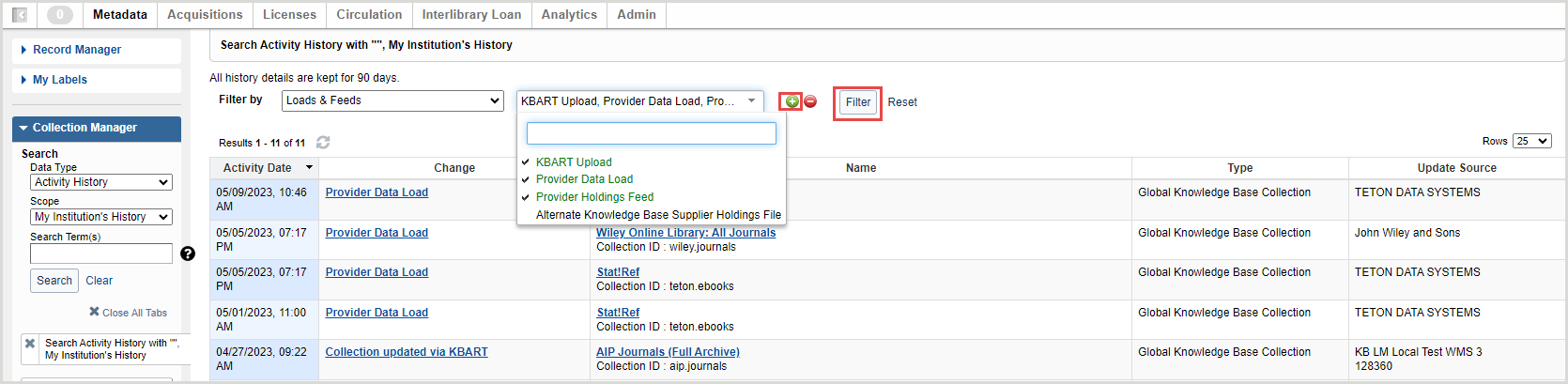
collection-manager-filter-activity-history.png

  1. Use the Show filters button collection_manager_show_filters.png to select one of the available filter types.
  2. For each Filter option, select one or more Values.
  3. (Optional) Add additional filters by using the Add filter button.
  4. (Optional) Remove filters by using the minus sign next to the filter row. Select the Remove all option to remove the filters.
  5. The search results will update as the filter is applied.

Available Activity History search filters

Find information about the available filters and subfilters and to which collections types they are applicable.

Expand to see all search filters and subfilters
Filter Value Applies to knowledge base collections Applies to query collections Applies to cataloging partner collections More information
Activity date [Date] - To [Date]
Collection activity Collection created X (local collections only) X X  
Collection updated X X X  
Collection deleted X (local collections only) X X  
Collection selected X (global collections only)      
Collection deselected X (global collections only)      
Local collection promoted to global cooperative X (local collections only)     The institution that submits the collection will see activity when they submit a collection, they withdraw it, when OCLC accepts or is unable to accept. The local collection will no longer exist once the collection becomes global. An event will remain.
Collection type Cataloging partner collection        
Knowledge Base - Global        
Knowledge Base - Local        
Knowledge Base - Shared to my library        
Query         
Loads & Feeds KBART upload X     See Knowledge base collection Activity History, KBART Upload 
Provider data load X (global collections only)     See Knowledge base collection Activity History, Provider Data Load 
Automatic holdings feed X (global collections only)     See Knowledge base collection Activity History, Automatic Holdings Feed
KB sync file X (global collections only)     See Knowledge base collection Activity History, Alternate Knowledge Base Supplier 
Provider Provider UIDs X   X  
Settings - Automatic Holdings Feed Feed added X     Refer to Knowledge base collection Activity History, Automatic Holdings Feed
Feed edited X     Refer to Knowledge base collection Activity History, Automatic Holdings Feed
Feed removed X     Refer to Knowledge base collection Activity History, Automatic Holdings Feed
Feed paused X     Refer to Knowledge base collection Activity History, Automatic Holdings Feed
Feed resumed X     Refer to Knowledge base collection Activity History, Automatic Holdings Feed
Settings - Google Scholar Collection settings - Google Scholar enabled / disabled X      
Institution Settings - Google Scholar enabled / disabled X      
Settings - MARC record delivery Collection settings - MARC records enabled / disabled X X X  
Institution settings - MARC records enabled / disabled X X X  
Settings - WorldCat holdings Collection settings - WorldCat holdings enabled / disabled X   X  
Institution settings - WorldCat holdings enabled / disabled X   X  
Sharing activity Share accepted (by another institution) X      
Shared by my library (to another institution) X      
Shared to my library (from another institution)  X      
Work list activity Title work list selected X      
Title work list deselected X