
Learner guide: Edit WorldCat knowledge base collections with user interface
Course overview
This course provides instruction on WorldCat knowledge base collections, including searching for collections, selecting and editing existing collections, as well as creating local collections using the WorldShare Collection Manager interface. At the end of this session, learners will gain the foundational knowledge to search and perform basic actions on knowledge base collections.
Note: This learner guide is designed to accompany the Collection Manager: Edit WorldCat knowledge base collections with user interface course. If you attended the Collection Manager: Edit WorldCat knowledge base collections with user interface instructor-led course or listened to the recording, please complete our brief evaluation. Your feedback is very important! Thank you!
Login to WorldShare Collection Manager
Login to WorldShare interface with your library’s unique URL: https://yourinstitution.share.worldcat.org/wms/.
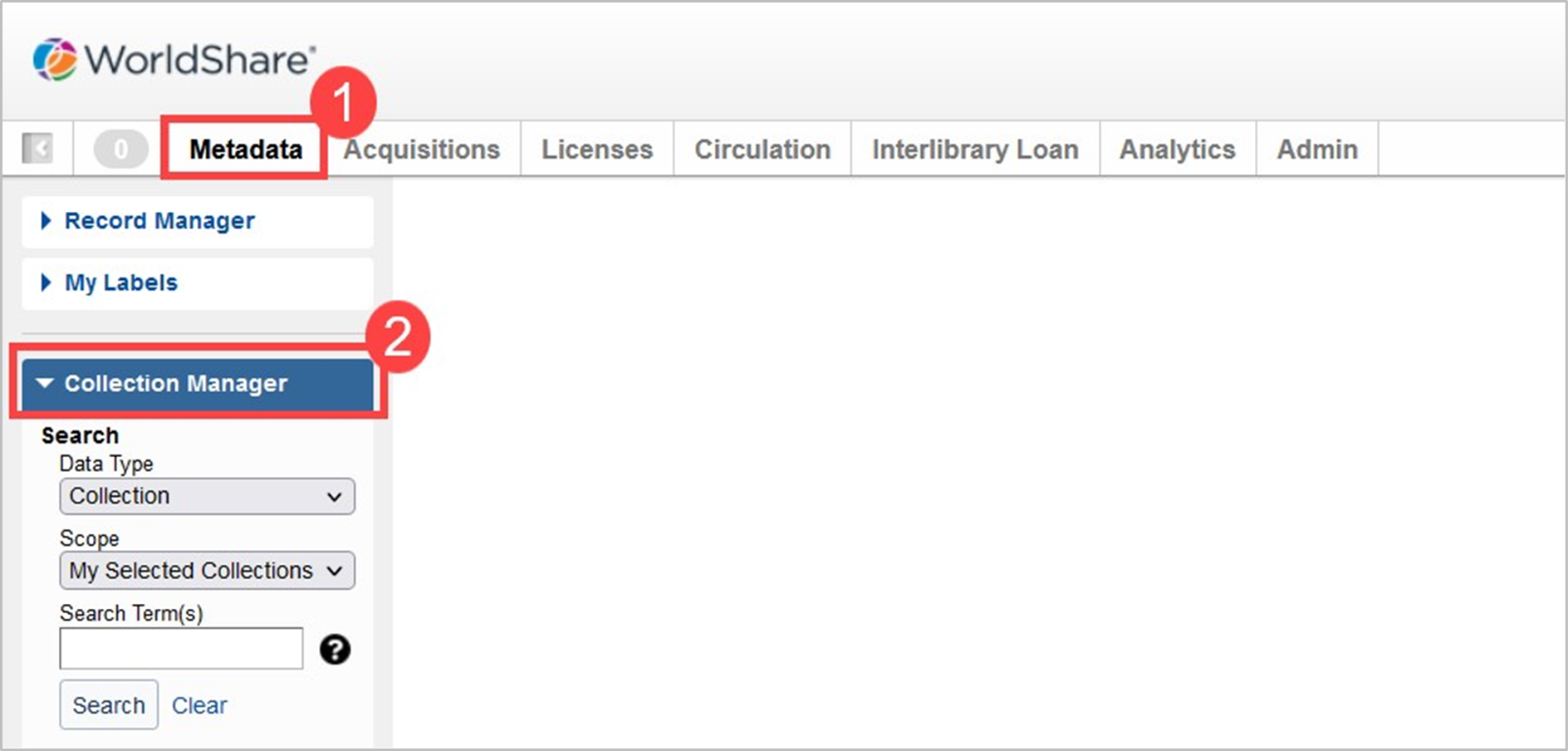
Refer to the Browser compatibility chart for browser compatibility information.
Search for collections, providers, or titles
Depending on the information that you have about your materials, you can search for collection, for provider, or for title.
- Click Collection Manager.
- Under Data Type, select:
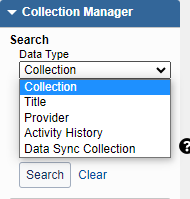
- Collection
- Title - You can search by OCLC number, ISBN number of the title, or ISSN of the journal title.
- Provider
- Activity History
- Data Sync Collection
- Option to leave the search box empty and limit search by Scope.
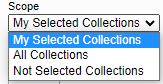
- My Selected Collections - The search will return results with collections that your library created or selected.
- All Collections - The search will return results from the global WorldCat knowledge base and any collections your library created.
- Not Selected Collections - The search will return results with collections your library did not create or select.
- Use Filter by . . . to refine search results. Available filters vary by the Scope used to perform a search.


Select and edit knowledge base collection with user interface
1. Select an entire knowledge base collection
To select an entire collection,
- Click the Select all Titles button next to the desired collection in the collection search results screen.
Or - Click on the collection name to open the collection.
- Click the Titles accordion to open a list of titles in the collection.
- Review title information for titles in the collection.
- Click the Collection Actions menu, and then click Select Collection to select all titles in the collection.
- (Optional) Click Auto Select Titles. If selected, this option automates the selection of new titles for your library when the provider adds new titles to this collection.
2. Select a subset of titles in a knowledge base collection
- Click on the collection name to open the collection.
- Click the Titles accordion to open a list of titles in the collection.
- Search for the desired title(s) using the Search Title box.
Or - Browse for the desired title(s) using the navigation arrows.
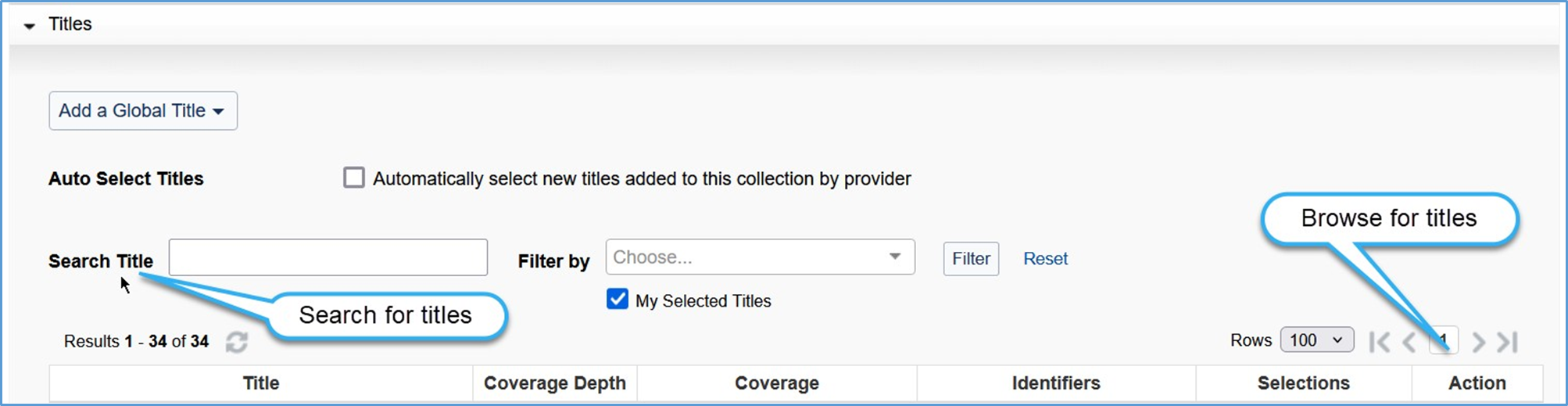
- Search for the desired title(s) using the Search Title box.
- Review the information for the desired title(s).
- Click the Select Title button next to each title to select the title.
3. Edit a title in a knowledge base collection
- Global vs. Local edits
- Global changes made to a global field are applicable to all libraries (e.g., Title Name).
- Local changes made to a local field are only applicable to the editing library (e.g., coverage information).
- More information about global vs. local fields can be found here.
- Once a title is selected, click the selected title to modify the appropriate information such as:
- Title Name
- Coverage information
- Title URL, ISBN, ISSN, etc.
- Add staff and public notes
- Click Review & Save to see a summary of changes.
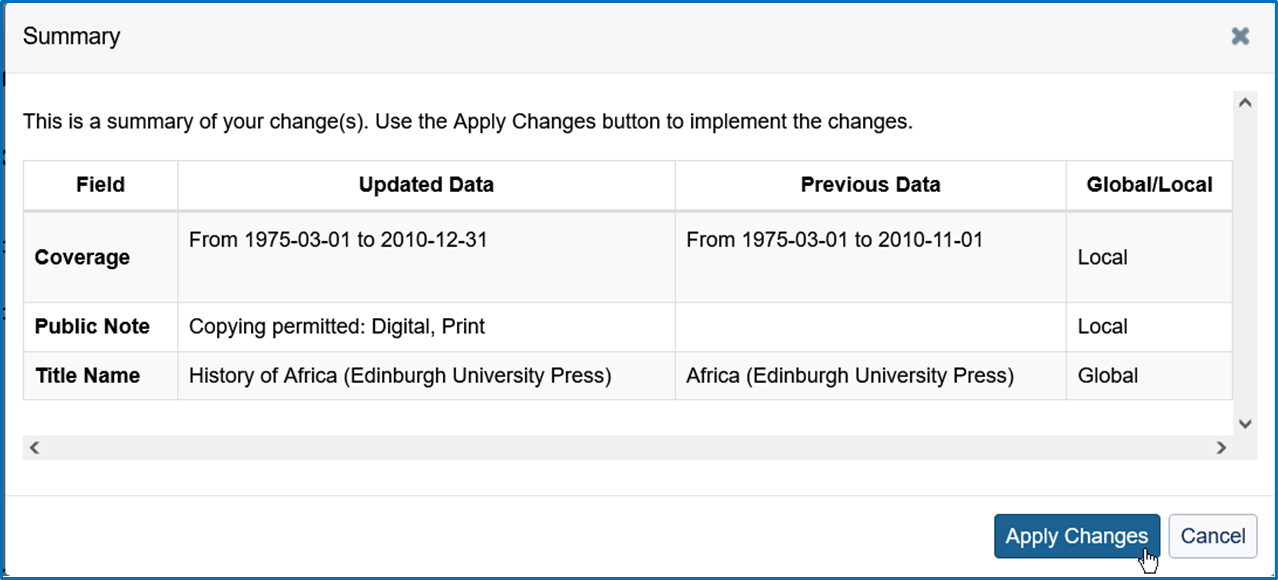
- Click Apply Changes to immediately save the changes or Cancel to return to the title for further editing.
4. Add a title to a global knowledge base collection
Under the Titles accordion:
- Click Add a Global Title.
- Select Create a Title.
- Enter the Title metadata for the eJournal or eBook.
- Save the title.
Create a new knowledge base collection with user interface
1. Create a database only collection
Under Collection Manager:
- Click Create a Collection.
- Select Knowledge Base Collection.
- Check the database-only collection box to create a collection containing no titles.
- Click Create.
2. Create a new local collection
Under Collection Manager:
- Click Create a Collection.
- Select Knowledge Base Collection.
- Click Create.
The new collection screen displays (Required fields marked with a red asterisk (*)).
- Properties accordion
- Enter a Collection name.
- Use or change Collection ID.
Note: Your Collection ID needs to be unique. - Search for an existing Provider or Create a Provider.
- Linking accordion
- Enter the Collection URL as appropriate.
- Link scheme - OCLC can create a link scheme for a new knowledge base collection and add it here. Provide OCLC Support with the following information:
- Collection name, Collection ID, and Provider
- Sample search from current provider to full-text
- Username and password
- Click Create to add a new collection.
3. Add titles to a new collection
To add titles manually, choose Create a title from Add a Local Title menu:
- Enter the Title for the journal or ebook.
- Choose the appropriate Coverage Depth.
- Add Coverage information, if needed.
- Add ISBN, ISSN, and/or OCLC number as appropriate.
- Other metadata as needed for title.
- Save the title.
To add a title by OCLC number, choose Create Using OCLC Number to Pre-fill from the Add a Local Title menu:
- Edit the Title field as needed.
- Add additional ISSN or ISBN as appropriate.
- Add Coverage information, if needed.
- Other metadata data as needed for title.
- Save the title.
Deselect knowledge base collection and/or titles
Depending on the changes in your library’s electronic resources subscriptions, you may need to periodically remove title selections from an entire collection or individual selected titles in a collection.
To deselect an entire collection:
- Under Collection Manager, search for the collection. The Search results screen displays.
- Identify the chosen collection.
- Under Selections, click Deselect.
To deselect individual titles in a selected collection:
- Under Collection Manager, search for the collection. The Search results screen displays.
- Identify the chosen collection.
- Click the collection name to display the collection.
- Search for your chosen title(s).
- Under Selections, click Deselect Title.
Search activity history
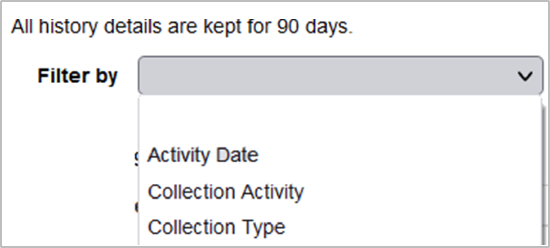
Activity history shows activities from the last 90 days for knowledge base, query, and cataloging partner collections.
- Click Collection Manager.
- Under Data Type, select Activity History.
- Option to leave the search box empty and limit search by using Scope.
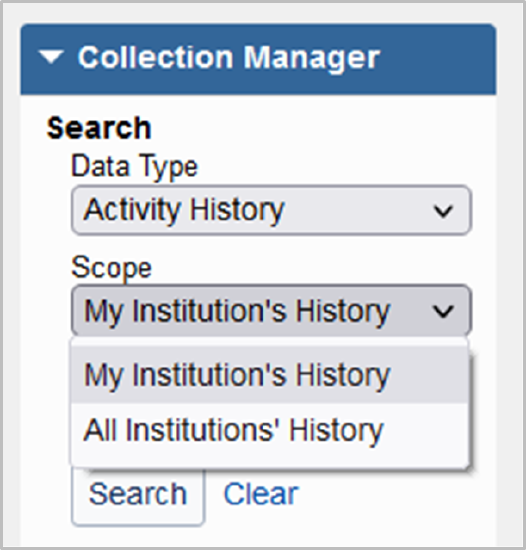
- My Institution's History - The search will return results related to only your library’s activities.
- All Institution's History - The search will return results for all activities.
- Use Filter by to refine search results.
Test your knowledge
- Name two reasons why libraries use WorldCat knowledge base collections?
- Name two ways to select collections in the WorldCat knowledge base using the WorldShare Collection Manager application.
- After selecting an entire collection, you will need to deselect the entire collection before you are able to select individual titles within that collection.
- True
- False
- Explain when you would create a new WorldCat knowledge base collection.
Test your skills
Note: You will be using your library’s Collection Manager to do these exercises. If you make changes, note of these changes so you can undo the changes, deselect titles or collections, and delete newly created collections.
Exercise 1: Search in Collection Manager
1A: Search for a collection
- Select Metadata.
- Expand Collection Manager.
- Select Data Type Collection.
- Search Term(s): Art, Design and Architecture Collection by Proquest
- Select Scope Not Selected Collections
Note: Your library just purchased this collection and does not have holdings selected for this collection.
How many titles are in this collection? ______________________________________________________
1b: Search for titles
- Select Data Type Title.
- Select Scope Not Selected Collections.
- Search for OCLC number 48418629.
What is the title? ______________________________________________________ - Search for ISBN number 9780470026823.
What is the title? ______________________________________________________ - Search for ISSN number 1938-7806.
What is the title? ______________________________________________________
Exercise 2: Edit a knowledge base collection
- Search for a collection of your choice. Identify and open your collection for editing.
Collection name: ______________________________________________________ - Review your list of titles for the collection and select a few titles to add holdings to the titles. Selected titles: ______ Selected titles: ______
- Edit two titles as follows:
- Edit coverage information, if applicable.
- Edit ISSN or ISBN for your chosen title.
- Add staff and/or public notes, as needed.
Exercise 3: Create a collection
- Select Metadata.
- Expand Collection Manager.
- Click the Create a collection button.
- Select Knowledge Base Collection. Click Create.
- Enter the following information in the Properties accordion:
- Enter a Collection Name: ______________________________________________________
Note: Include your initials as part of the collection name. - Enter Provider as OCLC Training.
- Click Create.
- Enter a Collection Name: ______________________________________________________
- Title accordion:
- Add a title manually add each title to the collection.
- Click Add a Local Title menu, select Create a Title.
- Electronic journal: Swimming World Magazine
- Publisher: Sports Publications, Inc.
- ISSN: 0039-7431
- Full-text Coverage: April 1, 1998 (start) – June 1, 2006 (end)
- OCLC#: 247119104
- Title URL: https://www.oclc.org/oclctraining/ex...es/ex247119104
- Click Save.
- Click Add a Local Title menu, select Create a Title.
- Add a title to the collection using an OCLC number.
- Click Add a Local Title menu, select Create Using OCLC Number to Pre-fill.
- Electronic book: The Golden House
- Author: Salman Rushdie
- Date: 2017
- ISBN: 9780735273580
- OCLC#: 972181933
- Title URL: https://www.oclc.org/oclctraining/ex...es/ex972181933
- Click Save.
- Click Add a Local Title menu, select Create Using OCLC Number to Pre-fill.
- Add a title manually add each title to the collection.
Exercise 4: Deselect and delete knowledge base collections
- Search for each of the collection you worked with from the previous exercises.
- Collection name: ______________________________________________________
- Collection name: ______________________________________________________
- Collection name: ______________________________________________________
- Remove holdings for all selected or locally created collections.
Additional information
- WorldShare Collection Manager training - Find this class and additional training content here.
- What’s new with WorldShare Collection Manager? Check the WorldShare Collection Manager release notes.
- WorldShare Collection Manager FAQ & Troubleshooting articles
- WorldShare Collection Manager Community Center
- Connect with OCLC staff and peers using WorldShare Collection Manager.
- Share workflows and feedback, and submit enhancement requests.
- Attend webinar events and keep up with product news
Additional questions? Contact OCLC Support.